Social video creator
You are planning a fictional character reveal that runs through several shots.
Storyboard the sequence and check continuity between frames before choosing a video workflow.
swapping faces in videoCreative workflow
A face swap ai online workflow starts with two clear references: the face you have permission to use and the scene you want to adapt. Faceai helps you think through the visual choices before you explore video creation.
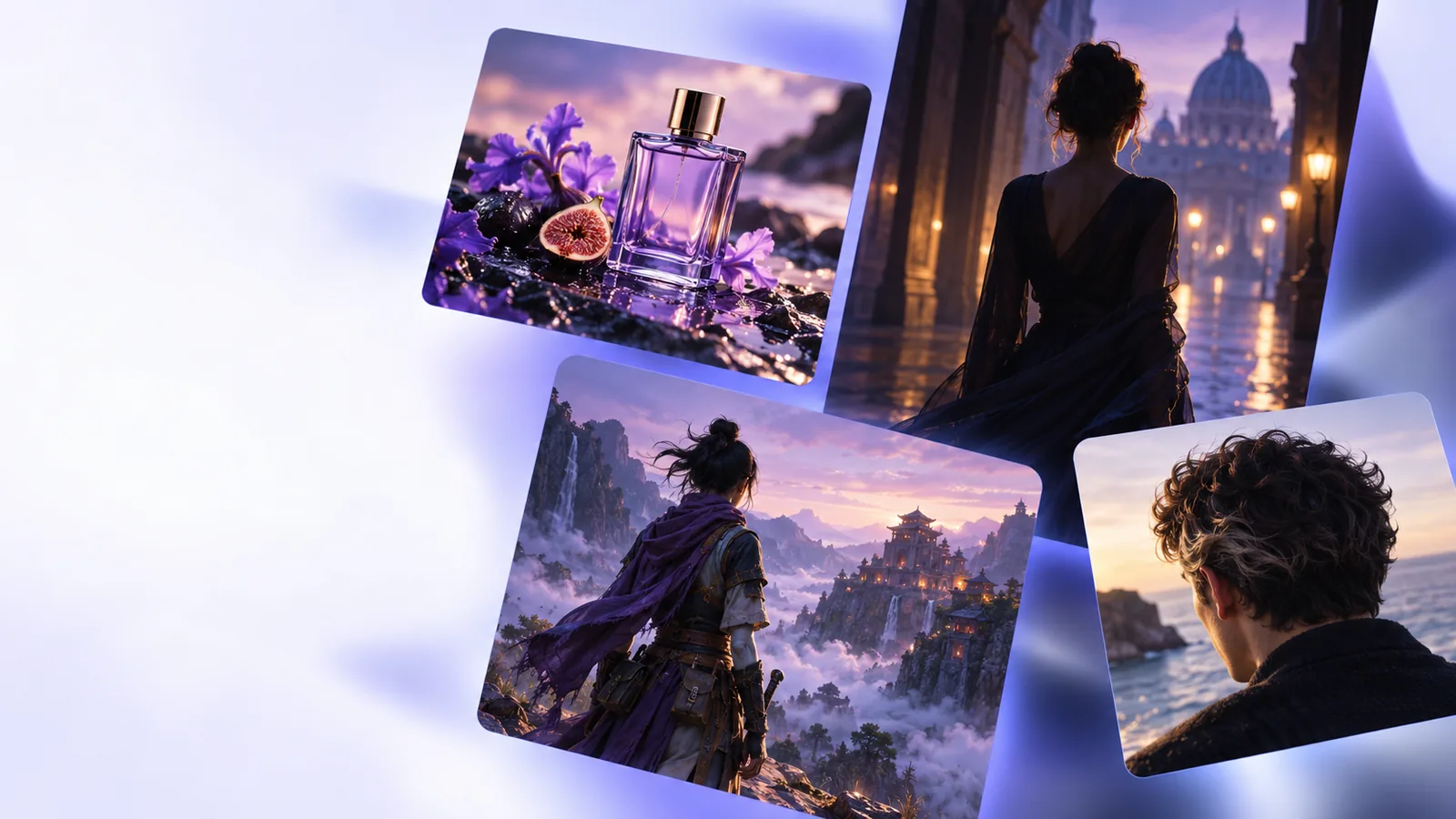
The online variant is a source-to-target edit: one image supplies a face reference, while another supplies the pose, setting, or composition.
Select a clear source portrait and a target scene. Use your own likeness or obtain the person's permission, especially if you intend to publish the result.
Compare head angle, lighting direction, expression, and image sharpness. Similar references give you a more coherent starting point than radically different ones.
Inspect edges, skin tones, and context before sharing. Label a synthetic edit when a viewer could mistake it for a real photograph.
The goal may be a single portrait, a sequence of frames, or a written concept. Pick the output first so you can prepare useful inputs rather than collect images at random.
An online face swap is not the same job for every creator. These starting points help separate still-image edits from video concepts and prompt writing.
You are planning a fictional character reveal that runs through several shots.
Storyboard the sequence and check continuity between frames before choosing a video workflow.
swapping faces in videoYou want to test a new look in one picture using a face you are allowed to edit.
Start with matching still portraits and examine the final image at full size.
still-photo swap optionsYou need to explain an intended portrait change to a collaborator.
Write down the subject, target scene, lighting, and boundaries before anyone edits.
a face-swap prompt briefA portrait concept may eventually become a moving scene.
Decide which details must remain consistent when the subject turns or speaks.
planning a moving-face editThese images illustrate a planning comparison, not a verified output from a particular tool. Check identity, lighting, and consent independently.

Still portrait
Moving portrait
Still portrait
A source face and one target image
Moving portrait
A source reference and a sequence of target frames
Still portrait
Match one head angle
Moving portrait
Account for angles changing over time
Still portrait
Compare light across two pictures
Moving portrait
Watch for lighting shifts between shots
Still portrait
Review one captured expression
Moving portrait
Review expressions as they change
Still portrait
Inspect edges at full image size
Moving portrait
Inspect both individual frames and playback
Still portrait
Explain that the image was edited
Moving portrait
Explain that the moving sequence was edited
If your project is moving beyond a still image, explore the video-creation destination and check its current capabilities before committing to a workflow. Do not assume it provides a dedicated face-swap control.
Explore video creationStart with a clear face reference, a target image or scene, and permission to use the person's likeness. Note the desired pose and lighting so you can judge whether the references are compatible.
Video adds changing angles, expressions, and lighting that a single still image does not have. Check whether the tool you choose explicitly supports the type of moving output you need rather than assuming a photo workflow will transfer.
Look closely at the hairline, jaw, shadows, skin tone, and direction of the eyes. For moving footage, also watch for flicker or facial features that shift between frames.
Ask for consent before using an identifiable person's likeness, particularly for public or commercial work. Avoid presenting an edited image or video as an authentic record of something the person did.