FFaceai

Practical tutorial

How to use face ai free for a creative project

If you are looking for how to use face ai free, start with a clear goal and material you have permission to use. Faceai can help you plan the workflow; check the available tools and access terms at the destination before sharing a photo, video, or prompt.

Check tools and terms before uploading
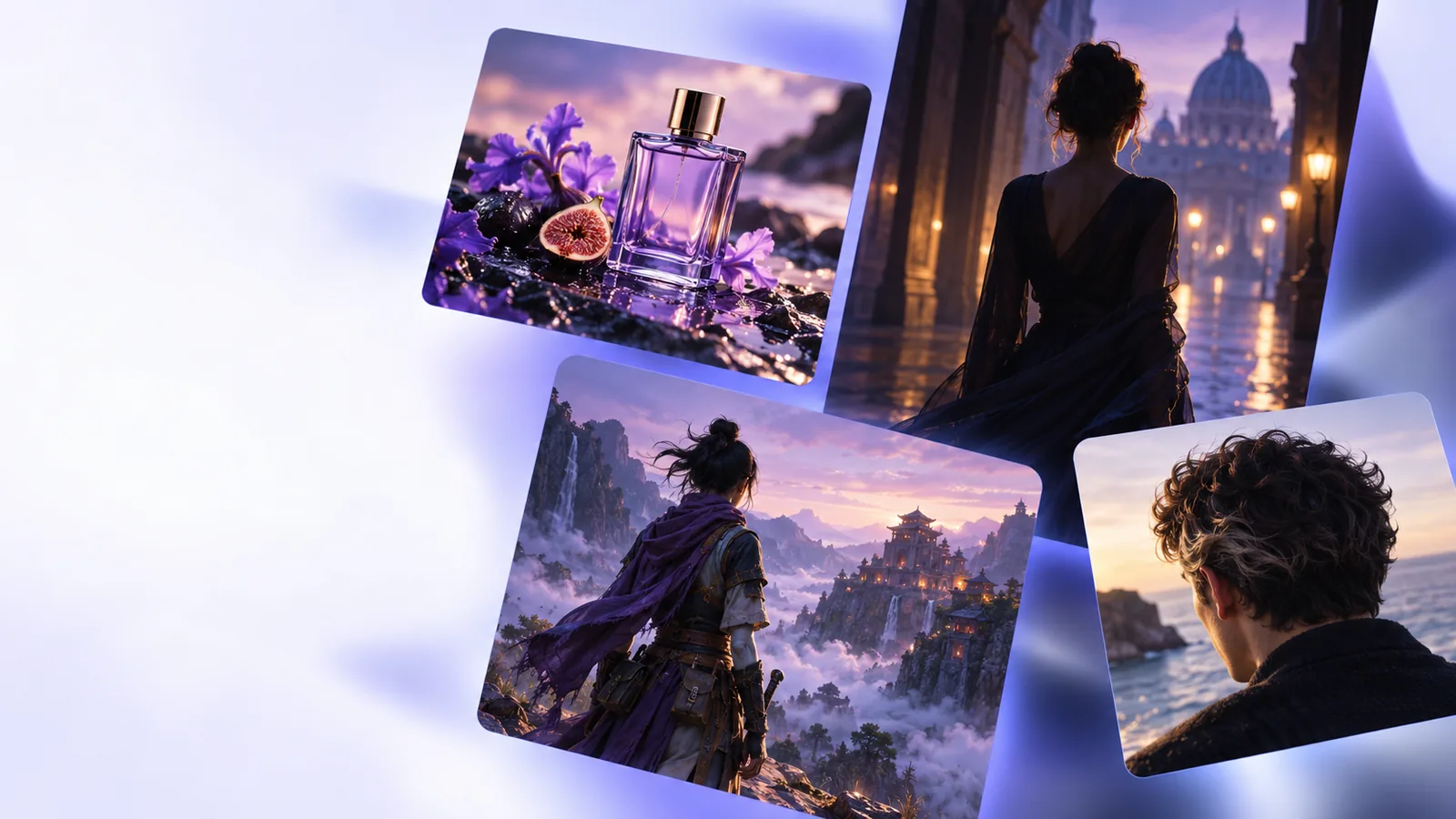
Creative portrait imagery illustrating a face-focused video idea

Decide what you want to make before opening a tool. That choice determines which source material, permissions, and checks you need.

Choose a goal before you start

A useful face ai brief names the subject, intended output, and one visual change. Keep your first attempt narrow enough to judge.

Portrait creator

You have a photo of yourself and want to explore a different visual treatment without changing who appears in it.

Write down the lighting, background, and expression you want, then compare the result with your source for identity drift.

face ai examples free


Short-video editor

You are storyboarding a clip built around a person who has agreed to participate.

Specify the action and camera framing, and watch the full clip for changes between frames rather than judging one still.

face swap video

Reference writer

You need words for a consistent character appearance before making visual material.

Describe observable features and styling separately; avoid guessing identity, age, or sensitive traits from an image.

face ai description generator

Photo experimenter

You are considering a face replacement using images that both people have authorized.

Check alignment and lighting first, and label the final image as edited when its context might otherwise mislead viewers.

ai face swap

Numbered steps

Use this sequence as a decision process, not a promise that every destination offers the same face ai controls.

  1. 1

    Prepare an authorized source

    Choose a clear photo or clip that you own or have permission to use. If another person is recognizable, obtain their consent for this specific edit and its intended audience. Note any background details you do not want to disclose.

  2. 2

    Write a focused brief

    State whether you want a portrait concept, a video idea, or an edit. Name the desired setting, lighting, framing, and mood. For example: keep the subject recognizable, use soft side light, and avoid changing the expression. A short face ai brief is easier to evaluate than several competing instructions.

  3. 3

    Check the destination and review

    Open the destination, inspect its current tools, upload rules, and access terms, and proceed only if they suit your project. If you make a result, compare it with the source for facial consistency, artifacts, and unintended changes. Revise one instruction at a time, then disclose meaningful edits when you share the work.

Inspect the result against your source

A side-by-side review helps you spot a change that a polished preview can hide.

  • Reference planning
  • Illustrative result

These images illustrate a review workflow; they are not a verified before-and-after transformation. In your own project, compare the actual source and result, including the hairline, eyes, mouth, and background.

Portrait and reference images arranged for visual planning
Illustrative image for a face ai tutorial

Common errors and fixes

When a face ai result misses the brief, isolate the likely cause before changing everything at once.

1

Identity changes

What you notice

The result resembles a different person.

What to try

Use a clearer authorized reference and explicitly request that recognizable features remain consistent.

2

Lighting mismatch

What you notice

The face and scene appear lit from different directions.

What to try

Specify one light source and choose a source image with similar lighting when possible.

3

Unnatural edges

What you notice

Hair, glasses, or the jawline look cut out.

What to try

Inspect the source at full size; try a less obstructed image or a simpler composition.

4

Busy instructions

What you notice

Several requested changes conflict or disappear.

What to try

Keep the subject and one visual goal; add secondary details only after reviewing a first result.

5

Video flicker

What you notice

Features shift between frames.

What to try

Watch the entire clip at normal speed and check whether a steadier, better-lit source is available.

6

Unexpected access limit

What you notice

A control or export option is unavailable.

What to try

Read the destination’s current terms and supported workflow before committing time or uploading sensitive material.

7

Misleading context

What you notice

Viewers might mistake an edit for an unaltered recording.

What to try

Add an accurate disclosure and avoid presenting generated scenes as evidence of real events.

Advanced tips

A careful workflow also means knowing what this tutorial cannot verify or do on your behalf.

  • It cannot confirm free access

    A search for a free face ai workflow does not establish which features, exports, or usage limits are currently available at the destination.

    WorkaroundCheck the live access terms before uploading material or planning a project around a particular feature.

  • It cannot grant permission

    An image being visible online does not mean its subject agreed to a face edit, impersonation, or publication.

    WorkaroundUse your own material or obtain clear permission that covers the intended edit and where it will appear.

  • It cannot guarantee likeness

    A prompt alone cannot ensure that facial details remain accurate, especially across motion, occlusion, or dramatic lighting changes.

    WorkaroundKeep a copy of the authorized source and inspect any result closely before sharing it.

  • It cannot verify identity or authenticity

    A convincing face ai image or clip is not proof that a person appeared in, approved, or performed the depicted scene.

    WorkaroundUse independent verification for factual claims and describe creative edits honestly.

Continue with a deliberate brief

Take your idea to the next step

Bring a specific concept, use material you are authorized to share, and inspect the destination’s current tools and terms. If they fit your project, review the result for accuracy and disclose edits that could be mistaken for real footage.

Explore your idea
  • Start with one clear visual goal
  • Check permissions and access terms
  • Review before sharing

Tutorial FAQ

Start by writing a brief and selecting material you have permission to use; those planning steps do not require a tool. Then check the destination’s current access terms to see whether the feature you need is available without payment. Do not assume that viewing a tool means its generation or export is free.

Name the intended output, the authorized subject, and one or two visual changes such as lighting and background. Ask for recognizable features to remain consistent if likeness matters. Avoid stacking many unrelated instructions into the first attempt.

Get the person’s permission for the specific use, especially if the result will be published or could appear to depict something they did not do. Having access to an image is not the same as having consent to edit or distribute it. When permission is unclear, choose your own photo instead.

Low-quality references, obscured features, conflicting instructions, and lighting changes can all make a result harder to match. Compare the source and output at full size, then simplify the brief and adjust one factor at a time. If the likeness is important, do not share a result you cannot confidently review.

Yes, a clip needs review across time: a face may appear consistent in one frame but shift during movement. Watch the entire result for flicker, changing features, and misleading context. A single preview frame is not enough to assess the finished video.

Start creating
Start creating